How to Change Your iPhone Wallpaper Automatically (Daily Quote Rotation)
Any wallpaper stops working once your brain gets used to it. The fix is rotation: a different quote every day. iPhone can do this on its own in two ways.
Option 1: Photo Shuffle (easiest)
- Download 5-15 wallpapers in your iPhone size – for example a mix from discipline, study and affirmations.
- In Photos, add them to a new album named Wallpapers.
- Long-press the lock screen → + → Photo Shuffle → choose the album.
- Tap ⋯ and set the frequency: Daily, Hourly, On Lock or On Tap.
Option 2: Shortcuts automation
- Open Shortcuts → Automation → New Automation → Time of Day (for example 6:00 every day).
- Add Find Photos where album is Wallpapers, sort randomly, limit 1.
- Add Set Wallpaper and choose Lock Screen.
- Turn on Run Immediately.
Tips
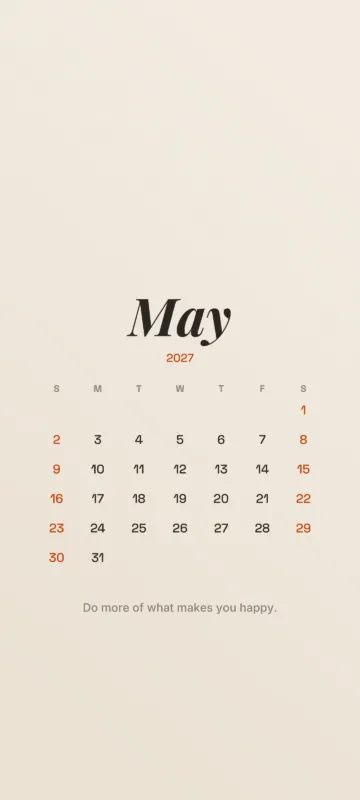
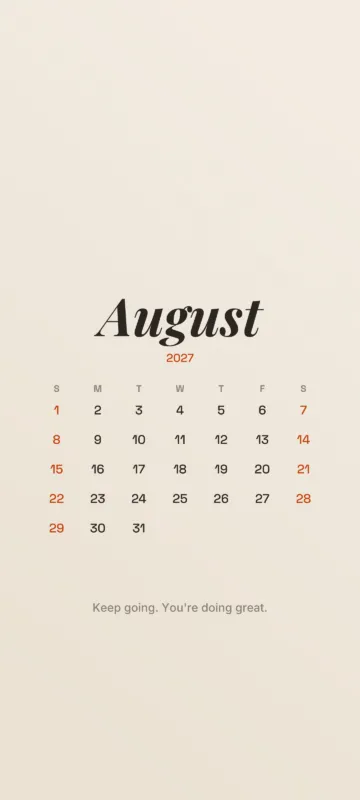
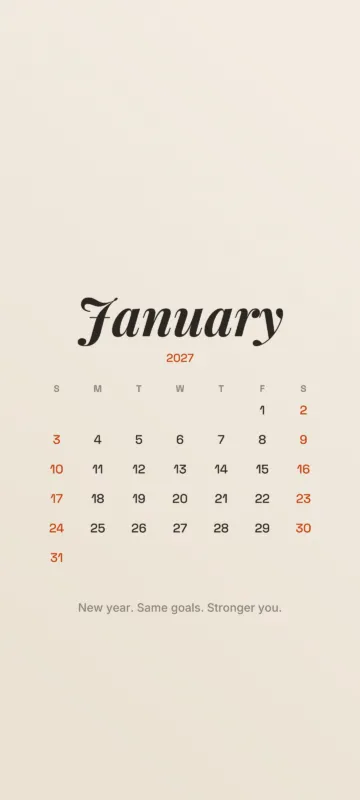
- Mix styles – a dark AMOLED design, a scenic photo and a calendar – so each change is noticeable.
- Use a monthly calendar wallpaper on the home screen and shuffle quotes on the lock screen.
- On Android, many launchers (and Samsung’s Dynamic Lock Screen) offer the same rotation from a folder.
Frequently asked questions
Does Photo Shuffle drain the battery?
No noticeable difference. Daily or On Lock shuffling uses very little power.
Can I rotate wallpapers on Android too?
Yes. Samsung offers Dynamic Lock Screen and Wallpaper services, and most launchers can rotate images from a folder.